
Compact order overview
Find a ticket. Focus on its details.
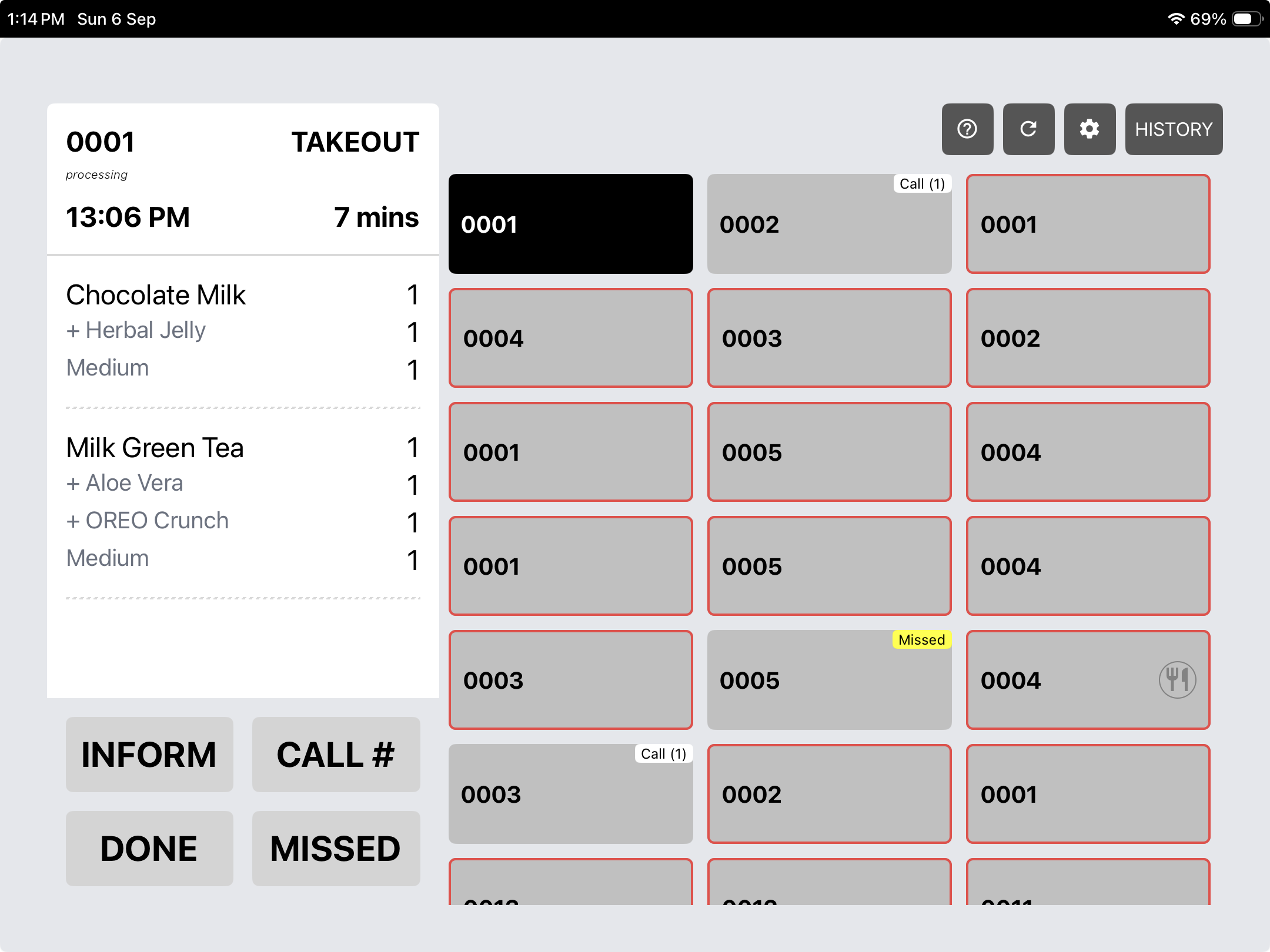
Select an order from the grid to review its products, quantities and modifiers in the detail panel.
 View screen ↗
CommerceOS / Kitchen display system
From the first ticket to the final handover.
Rewardly KDS gives your kitchen a detailed view of what to prepare, your waiters a clear Expedite checklist and your team a way to recall closed orders. Route products to the right station, watch waiting times and keep customer names beside the work.
 Enlarge screen ↗
Choose the view for the job
Different roles need different levels of detail. Use the compact order overview to locate a ticket, or the detailed card layout to see several orders and their items together.
Compact order overview
Select an order from the grid to review its products, quantities and modifiers in the detail panel.
View screen ↗Detailed order cards
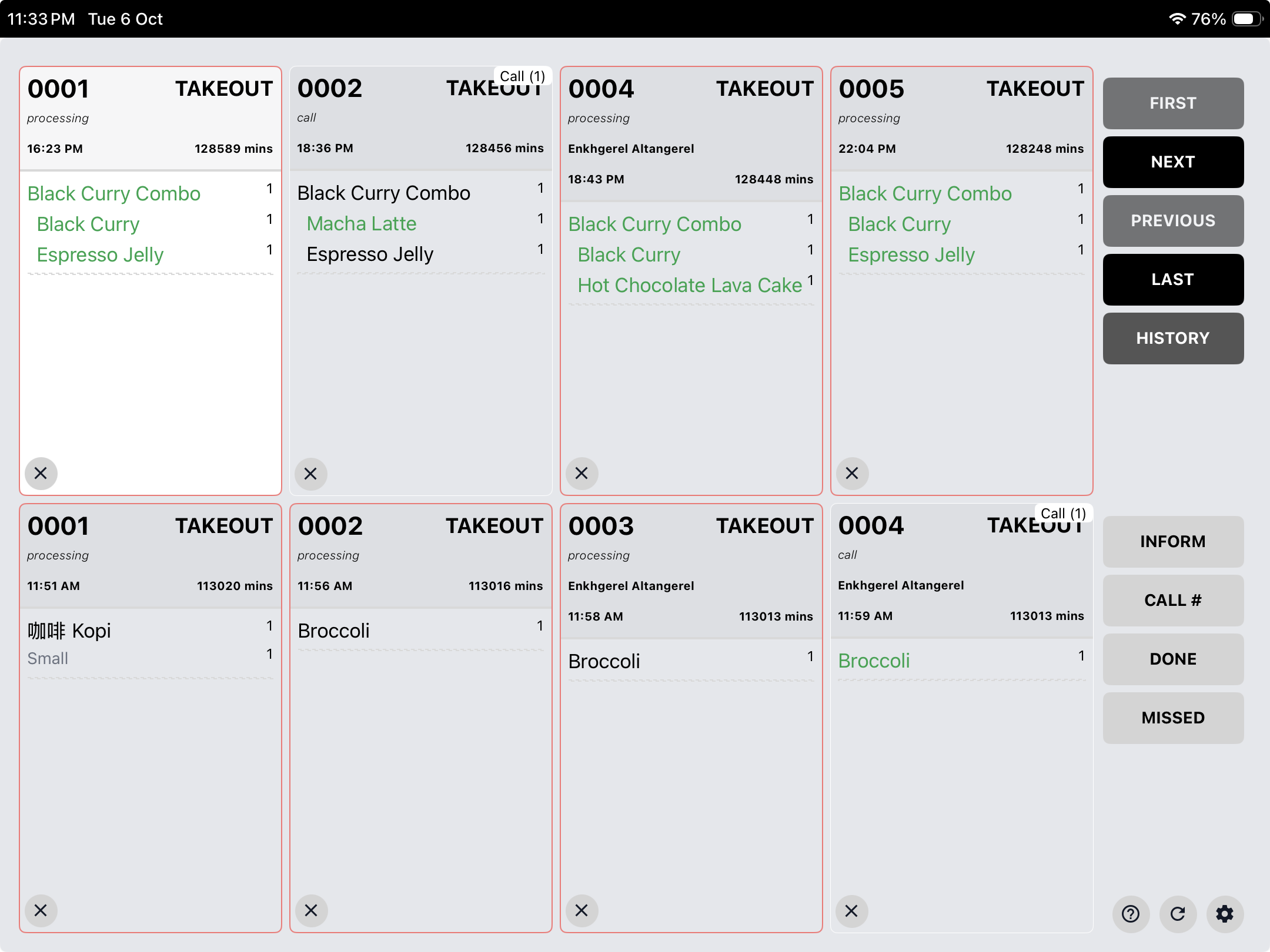
Review item lists directly on each card, with order type, time, customer name when available and progress markings.
Enlarge screen ↗Screens are supplied product captures. Order numbers, names and elapsed times are shown as captured; the displayed waiting times are not recommended service targets.
Product-category routing
Separate products by category so each KDS station receives the work it needs to prepare. Keep drink preparation focused on KDS 1 while food preparation runs on KDS 2.
One customer order
Products are separated by their configured category.
Coffee, tea and other drinks go to the team making beverages.
Meals and other food items go to the kitchen preparing them.
Illustrative station setup. Configure category assignments around your actual menu and preparation areas.
Time and priority, in view
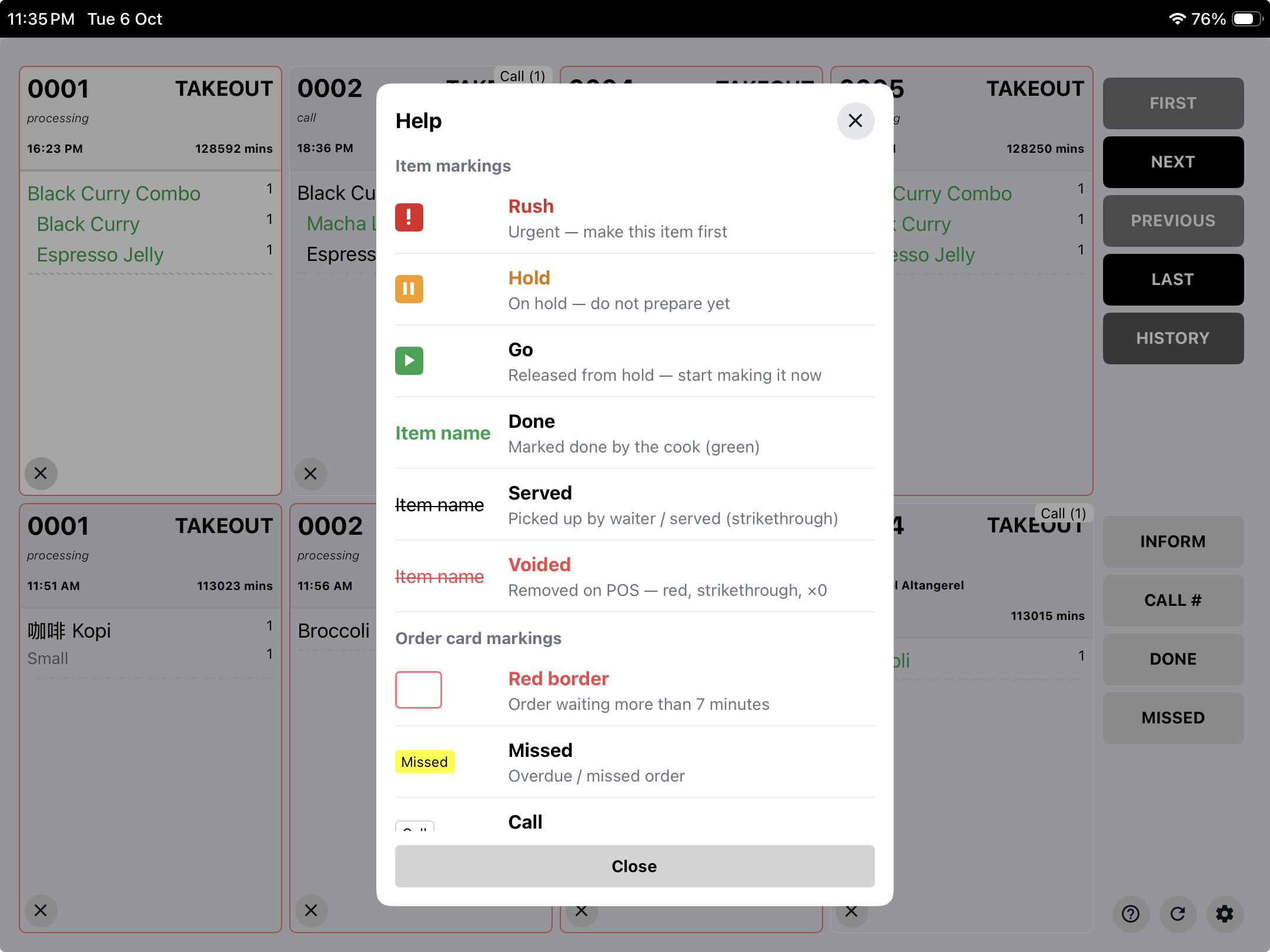
Order timers help the kitchen monitor how long tickets have been waiting. Combine elapsed time with Rush, Hold and Go markings to see what needs attention and what should wait.
The seven-minute threshold is shown in this screen’s help guide. Confirm the timing behaviour for your outlet during setup.
 Enlarge screen ↗
Yellow / Expedite display
Prepared is not the same as served.
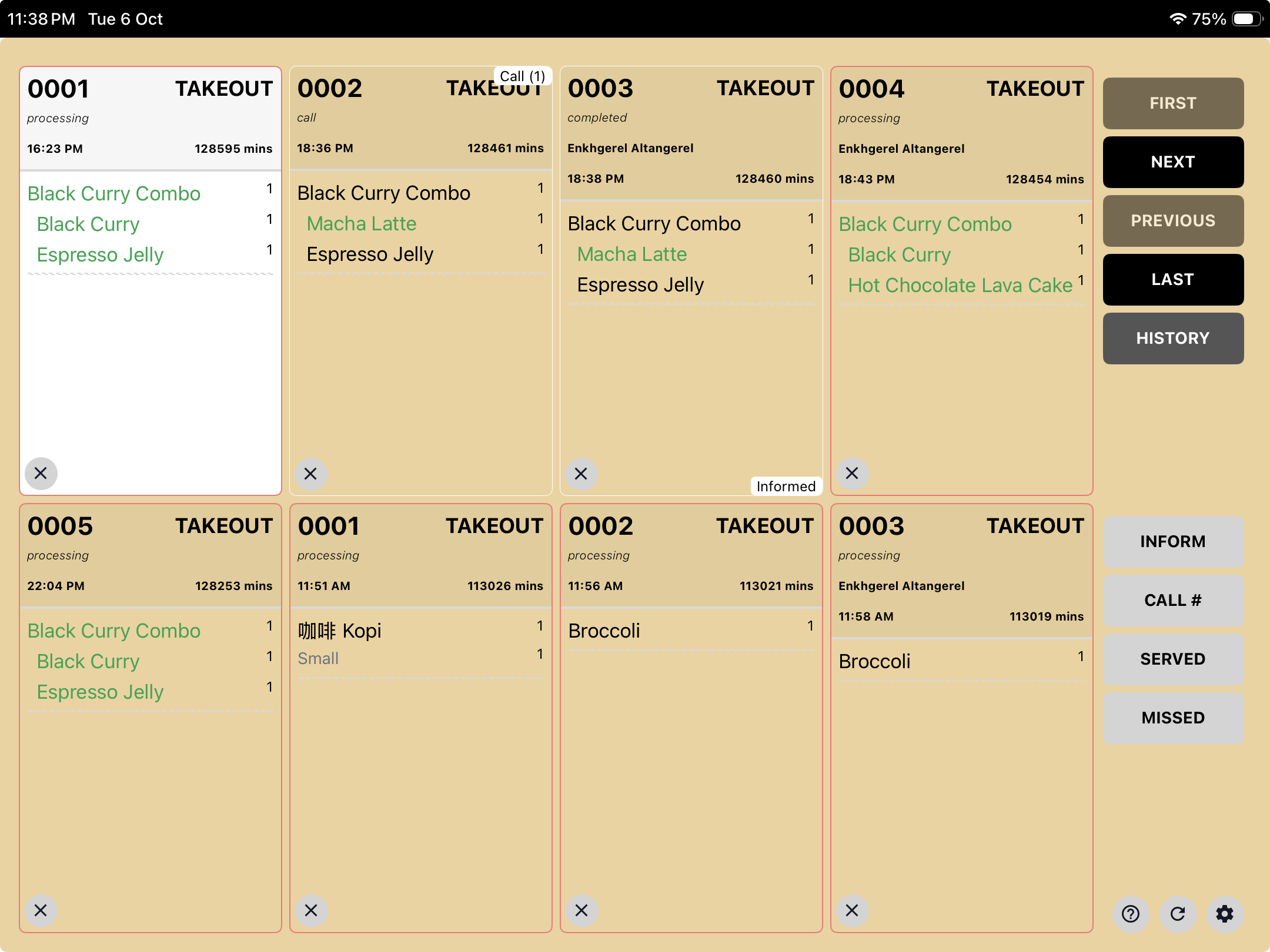
The yellow Expedite display helps waiters check the order item by item before handover. See what the kitchen has completed, what is still outstanding and what has already been picked up or served.
 Enlarge screen ↗
Green item names indicate items marked done by the cook.
A strikethrough marks an item picked up by the waiter or served, helping the team track the handover.
Items removed on the POS are shown in red with a strikethrough and zero quantity, as explained in the status guide.
Blue / History & recall
A way back when the kitchen needs one.
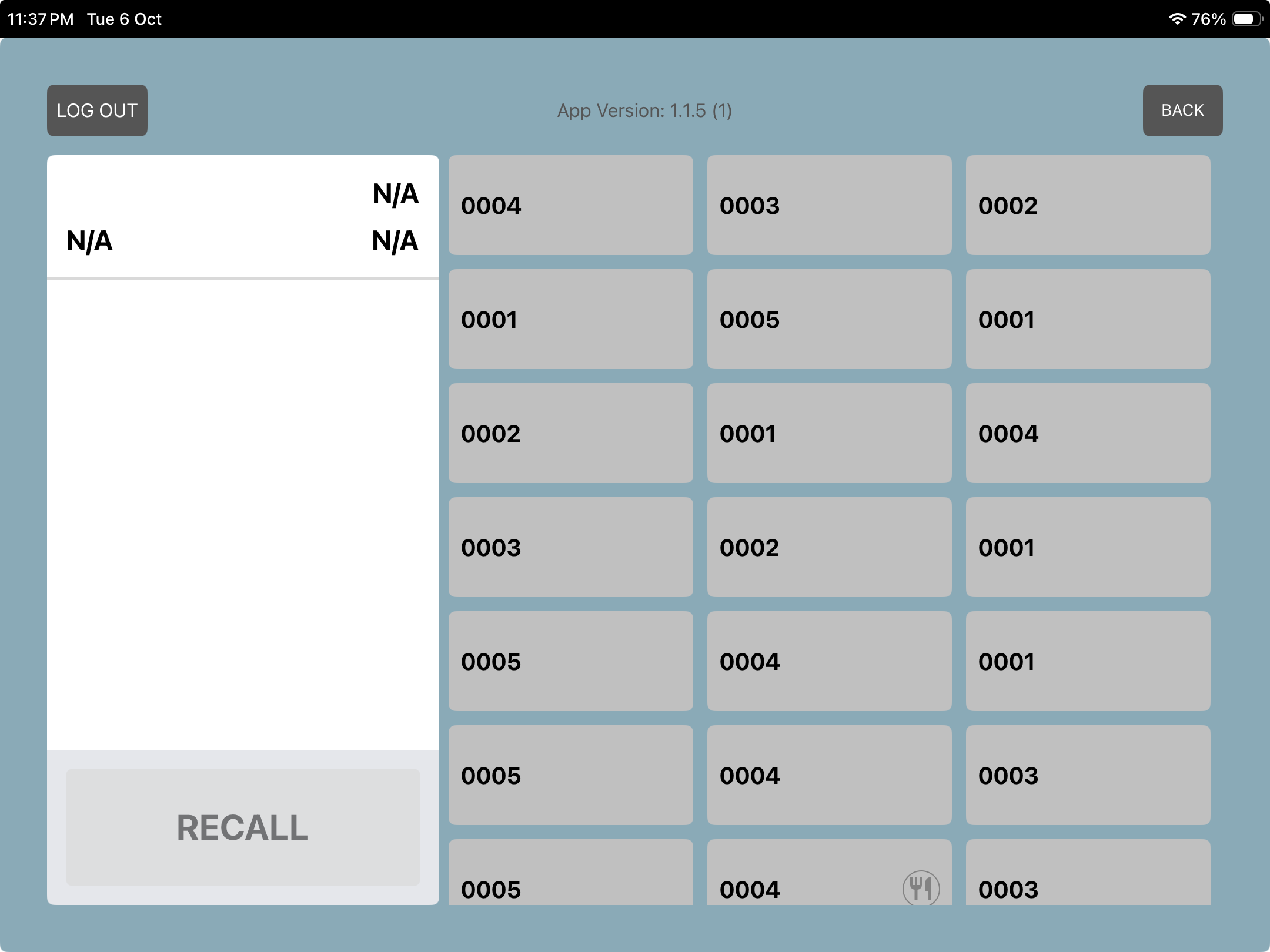
Open the history view to find a closed transaction, select the order and use Recall to bring it back to the kitchen workflow. Give staff a practical recovery step when an order needs attention after it has been closed.
Recall is a kitchen workflow action—not a payment refund or reversal.
 Enlarge screen ↗
Keep the guest in the picture
Show the customer name on the order card so the kitchen can recognise orders for known guests and keep track of VIP service.
When your team knows who an order belongs to, it is easier to coordinate attentive service between the kitchen and the floor. Keep the name, items and order status together instead of relying on separate verbal reminders.
Names appear when available on the order. Name visibility supports staff recognition; it does not imply automatic VIP detection or an automatic priority rule.
Your business. Your workflow.
Bring your menu, your busiest service scenario and your questions. Let’s walk through them in Rewardly.
Good questions
The supplied Rewardly screens show a compact order-number grid with a selected-order detail panel, and a detailed card layout showing multiple orders and their items side by side. Choose the view that suits the team’s preparation workflow.
Yes. Product categories can be assigned to different KDS stations. For example, route drinks to KDS 1 and food to KDS 2, with assignments configured around your menu and preparation areas.
Order cards show elapsed time, while Rush identifies an urgent item. The supplied help guide shows a red border for orders waiting more than seven minutes. Confirm the timing behaviour for your outlet during setup.
Hold tells the kitchen not to prepare the item yet. Go indicates it has been released from hold and preparation can begin. These markings help coordinate when individual items should be made.
It acts as an item-by-item handover checklist. Green item names indicate completion by the cook, while a strikethrough marks items picked up or served. This helps waiters distinguish preparation progress from the final handover.
Yes. Use History to find a closed order, select it and use the Recall control in the blue history view to return it to the kitchen workflow. This is not a payment refund or reversal.
Customer names can appear on order cards when available. This helps staff recognise known or VIP guests and coordinate service. It does not by itself imply automatic VIP detection or prioritisation.
The supplied KDS status guide identifies items removed on the POS using red text, a strikethrough and zero quantity. This distinguishes removed items from those that are completed or served.